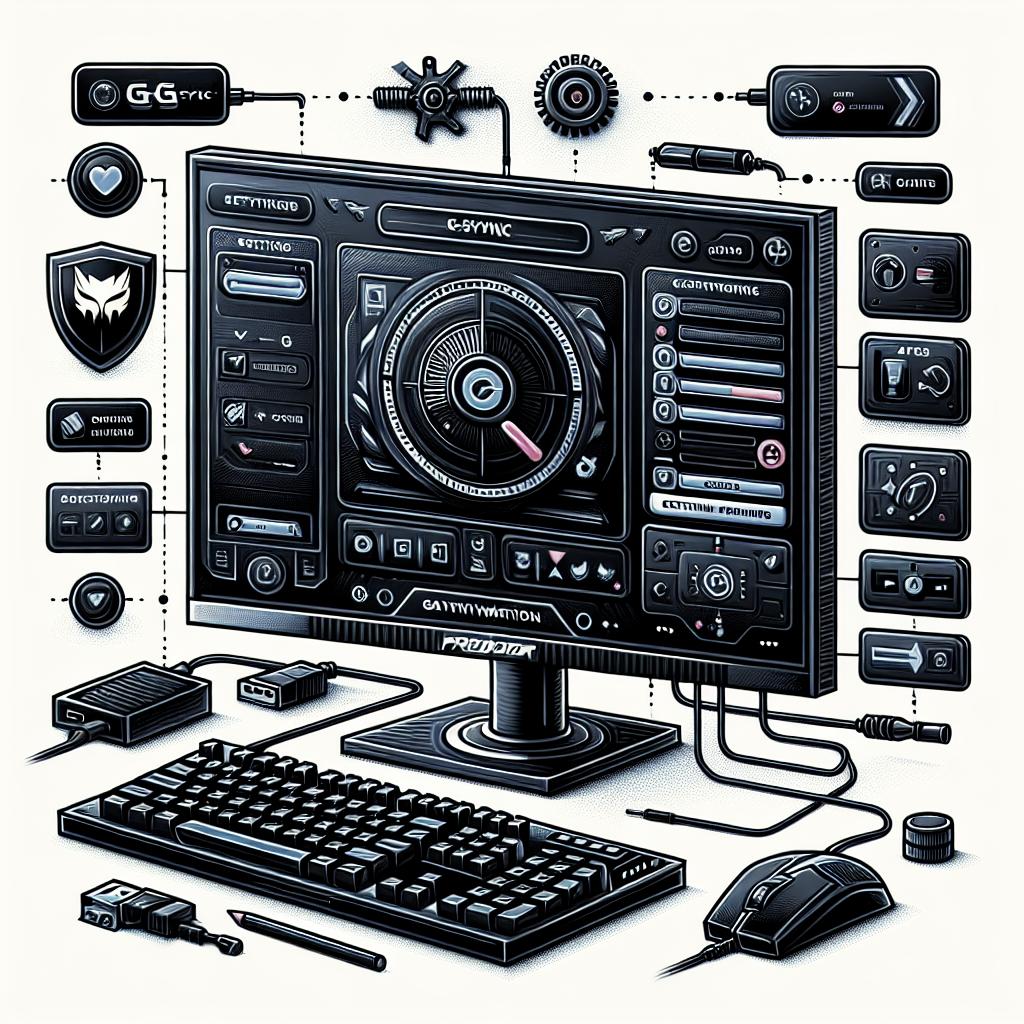
Activating G-Sync on the Acer Predator XB240H: A Comprehensive Guide
The quest for a seamless and immersive gaming experience often leads players to explore different technologies such as G-Sync. This feature, developed by Nvidia, enhances gaming by eliminating screen tearing and reducing stuttering. In this blog post, we’ll delve into the step-by-step process of activating G-Sync on your Acer Predator XB240H monitor. Furthermore, we’ll navigate through checking if G-Sync is already enabled, how to activate it on FreeSync monitors, and provide a list of Nvidia G-Sync compatible monitors for your perusal. By the end, you’ll be equipped with the knowledge to optimize your gameplay settings effectively.
Video News
In recent months, the gaming industry has seen significant advancements in display technologies, with Nvidia’s G-Sync continuing to demonstrate its pivotal role in optimizing gamers’ visual experiences. Video news outlets have spotlighted the integration of G-Sync technology into a broader array of monitors, including those traditionally equipped with AMD’s FreeSync.
These discussions emphasize how G-Sync transforms the gaming experience by dynamically adjusting the monitor’s refresh rate to synchronize with the GPU, thereby eliminating visual artifacts like tearing. Leading tech analysts discuss the economic implications for consumers who now have expanded options, ensuring competitive performance without exclusively investing in high-end G-Sync branded monitors.
Video platforms are buzzing with guides and unboxings, reflecting a growing trend where real-time analysis and user experiences are shared. This grassroots video content helps demystify the setup process, proving invaluable for users seeking to activate G-Sync on models like the Acer Predator XB240H.
How can I tell if G-SYNC is enabled on my monitor?
Determining whether G-Sync is enabled on your monitor is crucial in ensuring you’re making the most out of your hardware. Begin by accessing the Nvidia Control Panel, which is typically accessible by right-clicking on your desktop. Once opened, navigate to the ‘Display’ category, where you’ll see the ‘Set up G-SYNC’ option. If G-SYNC is enabled, this section will be active, showing your display settings.
In this window, you’ll find checkboxes that confirm whether G-SYNC is enabled for full-screen mode or windowed mode, depending on your personal preference. For further reassurance, you can also enable the ‘G-SYNC Indicator’, a small overlay that displays onscreen when G-SYNC is active during gameplay.
This diagnostic step is essential as it not only confirms the proper activation of G-SYNC but also helps in identifying any configuration hiccups, ensuring your gaming sessions remain fluid and immersive without the disruption of unsightly tears or lags.
How to enable G-Sync on a FreeSync monitor
Traditionally, G-Sync and FreeSync were seen as distinct technologies, compatible only with their respective hardware. However, Nvidia’s drivers now allow G-Sync to be utilized on select FreeSync monitors, broadening the spectrum of monitors that can deliver this synchronized visual experience. To enable G-Sync on a FreeSync-capable monitor, the first step is ensuring you have the latest Nvidia driver updates installed.
Next, access the Nvidia Control Panel and proceed to the ‘Display Settings’ to identify your installed monitor(s). Here, you can activate G-Sync by checking both ‘Enable G-Sync’ and ‘(Enable for window and full screen mode)’ options. You must also make sure that the ‘V-Sync’ setting in your game is turned off to prevent any unwanted conflict.
If your FreeSync monitor is compatible, the Nvidia Control Panel will likely recognize it automatically, and you’ll be able to enjoy a smoother and more consistent gaming experience. This functionality underscores a significant shift towards interoperability in gaming standards.
Nvidia G-Sync Compatible monitor list
Nvidia has curated a list of monitors that are officially deemed G-Sync Compatible. This certification ensures that these monitors have passed a comprehensive series of tests to confirm their capability to meet the high standards that G-Sync necessitates. Among this list, the Acer Predator XB240H stands out due to its capability for efficient refresh rate management in various gaming scenarios.
Some other models in this esteemed list include the ASUS VG278Q and the AOC G2590FX, which are known for their versatile display features, providing excellent value for a seamless gaming experience. As manufacturers continue to embrace adaptive sync technologies, this compatibility list is quickly expanding, offering more choices and price ranges for consumers looking to ride the wave of revolutionary visual smoothness.
While a G-Sync module offers premium quality with almost guaranteed performance, these compatible monitors offer a glimpse into a future where high-quality, stutter-free gaming is accessible for all budgets, broadening the market scope significantly.
Other Nvidia G-Sync compatible monitors we’ve tested:
In our rigorous testing, a few more monitors have shown promising results when it comes to G-Sync compatibility, beyond those officially certified by Nvidia. These include monitors from brands such as Dell, Lenovo, and MSI, which have shown excellent refresh rate management in varying gaming environments.
The Dell S2719DGF, for example, delivers a stunning visual performance with its QHD resolution and rapid response time, while the Lenovo Legion Y27q-20 provides crisp visuals with minimal input lag. Such models might not have the official certification but showcase admirable G-Sync performance, often at a lower price point.
Our findings indicate that gamers looking to enhance their systems might find unexpected gems among these unofficial options, providing fluid gaming experiences that meet, if not exceed, personal performance expectations in gaming setups.
Lessons learned
| Topic | Key Points |
|---|---|
| Video News | Discusses how advancements in G-Sync technology are covered in video formats, offering guides and analysis. |
| Checking G-SYNC Status | Details how to verify G-Sync activation through the Nvidia Control Panel and the importance of doing so. |
| Enabling G-Sync on FreeSync Monitors | Describes the process and benefits of enabling G-Sync on select FreeSync monitors with updated Nvidia drivers. |
| Nvidia G-Sync Compatible Monitors | Provides a list of officially recognized monitors and highlights the growing trend of compatibility between gaming technologies. |
| Tested Non-Certified Monitors | Shares insights into other monitors that perform well with G-Sync, expanding options for gamers. |