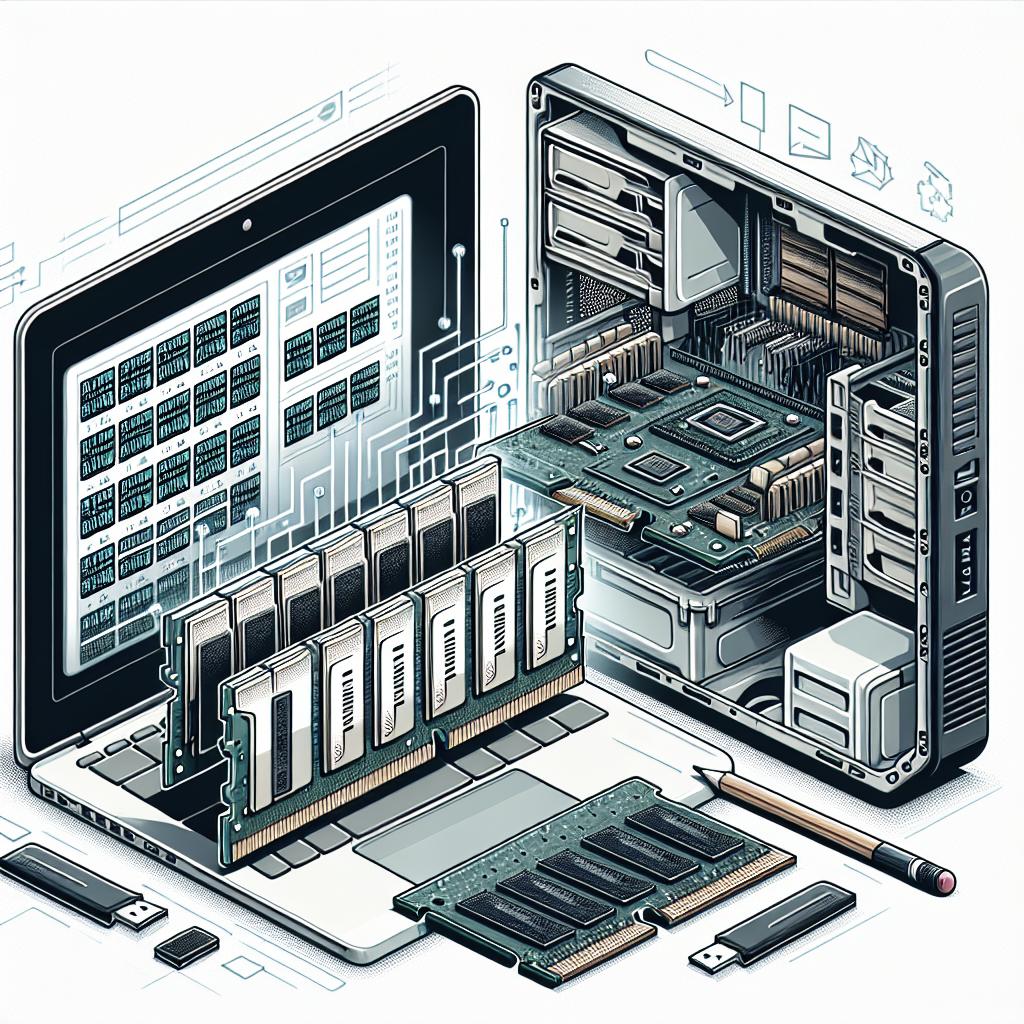
How to Find Out What CPU I Have Without Installing an OS or Opening PC
Understanding your computer’s CPU is crucial for optimizing performance and ensuring compatibility with other components.
This guide takes you through how you can determine your CPU’s specifications without opening your computer or having an
operating system installed. We’ll explain the significance of the CPU in your computer’s performance, outline strategies
for identifying it, and provide insights into determining the best CPU for your needs. Whether you are a tech enthusiast
or a casual user trying to optimize your setup, this post covers a range of methods and tips to accurately identify your
CPU, along with troubleshooting advice and answers to frequently asked questions.
Understanding the Importance of the CPU on Your Computer
The CPU, or Central Processing Unit, is often referred to as the “brain” of your computer. It is responsible for executing
instructions and processing data for all the applications and operations you run. Understanding the CPU’s role in your system
is crucial, as it dictates how well and how quickly tasks are performed, from simple calculations to complex gaming graphics
rendering.
A powerful CPU can dramatically enhance application performance and productivity. For digital content creators, gamers, and
professionals relying on computational tasks, a robust CPU ensures seamless operation. When considering upgrades or diagnosing
performance issues, knowing your CPU’s specifications is a fundamental step.
Locating the CPU in the Desktop Computer
Physically locating your CPU involves identifying its position within your computer’s hardware architecture. Typically, the CPU
is situated on the motherboard under a fan or heat sink for cooling purposes. If visual inspection is necessary, power down your
device and open the case – this, however, goes against our objective here, which is to find the CPU without physically opening
the device.
Instead, knowing the manufacturing specifications of your computer or motherboard can also help you pinpoint the CPU, as product
documentation usually includes detailed hardware descriptions. Such documents specify the compatible type and model of CPU your
system possesses.
Understanding the Role of the CPU in Performance
CPUs impact a computer’s speed and efficiency in multiple ways. The core count, clock speed, and architecture influence computing
performance, affecting tasks like video editing, gaming, and more. A greater number of cores implies an ability to handle multiple
tasks simultaneously, while higher clock speeds yield faster task processing.
Besides raw processing speed, today’s CPUs must also manage power efficiently to prevent overheating and throttle performance when
power draw becomes excessive. Modern processors incorporate various technologies, such as turbo boost and hyper-threading, to maximize
performance without a proportional increase in power consumption.
Choosing the Right CPU for Your Needs
When choosing a CPU, consider your typical computing tasks. Heavy multitasking, gaming, or media production demand higher performance CPUs
with more cores and advanced features. Meanwhile, everyday browsing and office applications could be sufficiently supported by mid-range CPUs.
Also, consider the synergy between your CPU and other computer components, like RAM and graphics cards. A balanced system avoids bottlenecks
and ensures that your CPU can fully leverage available resources. It is also essential to verify compatibility with your motherboard before
upgrading or selecting a new CPU.
Troubleshooting and Optimizing CPU Performance
CPU performance can often be optimized by addressing common issues that affect its operation. Overheating due to insufficient cooling or dust
accumulation, for example, can lead to throttling and diminished performance. Ensure your ventilation is unobstructed and that CPU fans are functioning
correctly to maintain optimal temperatures.
Updating your BIOS and drivers can also enhance CPU performance and stability by ensuring compatibility and access to the latest features. If further
troubleshooting is required, consider running diagnostic utilities that can identify any performance issues and suggest remedies.
Finding the CPU on Your Computer
To find your CPU without installing an OS, accessing the BIOS (Basic Input Output System) can be an effective method. Most PCs allow users to
enter BIOS by pressing a specific key (such as F2, DEL, or ESC) during the initial stages of booting.
Once inside the BIOS interface, you can typically find information about your processor type and features, often located in the “Main” or “System
Information” tab. This provides a straightforward method to ascertain your CPU specifications when an operating system or additional software is unavailable.
Key Takeaways – How to Find the CPU on Your Computer
Identifying your CPU is essential for understanding system capabilities and upgrading potential. Whether through BIOS access or referring to
manufacturer documentation, knowing your CPU model helps you make informed decisions about upgrades and performance optimizations.
Frequently Asked Questions
1. How can I find the CPU information on my computer?
You can find CPU information by entering the BIOS during startup, referring to your motherboard’s manual, or checking the manufacturer’s
specifications online.
2. Is there a shortcut to find the CPU information?
A swift way to access CPU information lies in referencing the BIOS, often accessible by pressing a dedicated key like F2 or Delete during boot-up.
3. What if I can’t find the “System Information” application?
If BIOS access is unavailable, consult your computer or motherboard’s manual or online specifications for details regarding the installed CPU model.
4. Can I find the CPU information through the BIOS?
Yes, the BIOS contains detailed information about your processor, usually found in sections labeled “Main” or “System Information.”
5. Are there any software programs that can provide detailed CPU information?
While the focus here is identifying hardware without an OS, various diagnostic tools like CPU-Z provide detailed CPU information once an operating
system is installed.
Hardware For Dynamic Quantum Computing
Dynamic quantum computing requires specialized hardware that surpasses traditional computers in processing capabilities, involving processors that
can manage qubits and complex quantum operations. This realm remains largely experimental and under development.
Ram Speed Vs CPU Speed
RAM speed and CPU speed both contribute to a system’s overall performance, yet they target different operational aspects. While CPU speed affects
raw processing power, RAM speed influences how swiftly data can be read or written, impacting multitasking and load times.
What Is Computer Hardware Configuration
Computer hardware configuration encompasses the arrangement and components within a computer, including CPUs, GPUs, RAM, storage, and peripherals.
A well-balanced configuration optimizes performance and meets user needs effectively, aligning with specific usage scenarios.
Is An Integrated Graphics Card Good
Integrated graphics cards share memory with the CPU and are well-suited for basic tasks like browsing and office work. However, for intensive
applications like gaming or video editing, dedicated graphics cards outperform integrated options due to their superior processing capabilities.
Future Prospects
| Topic | Summary |
|---|---|
| Importance of the CPU | Highlights the CPU’s vital role in computing performance and task execution. |
| Finding the CPU | Explains how to locate CPU information via BIOS without an OS or opening the PC. |
| Role in Performance | Describes how CPU characteristics like core count and clock speed affect computing speed and efficiency. |
| CPU Selection | Offers insight into selecting a CPU based on user needs and system compatibility. |
| FAQs | Answers common questions about CPU identification and understanding its specifications. |
Note: This HTML code provides a structured blog post, complete with subheadings, informative content, and key takeaways that summarize the main points. It includes a table summarizing the essential content discussed, aimed at offering a concise overview for readers interested in quickly accessing practical CPU information.