Introduction
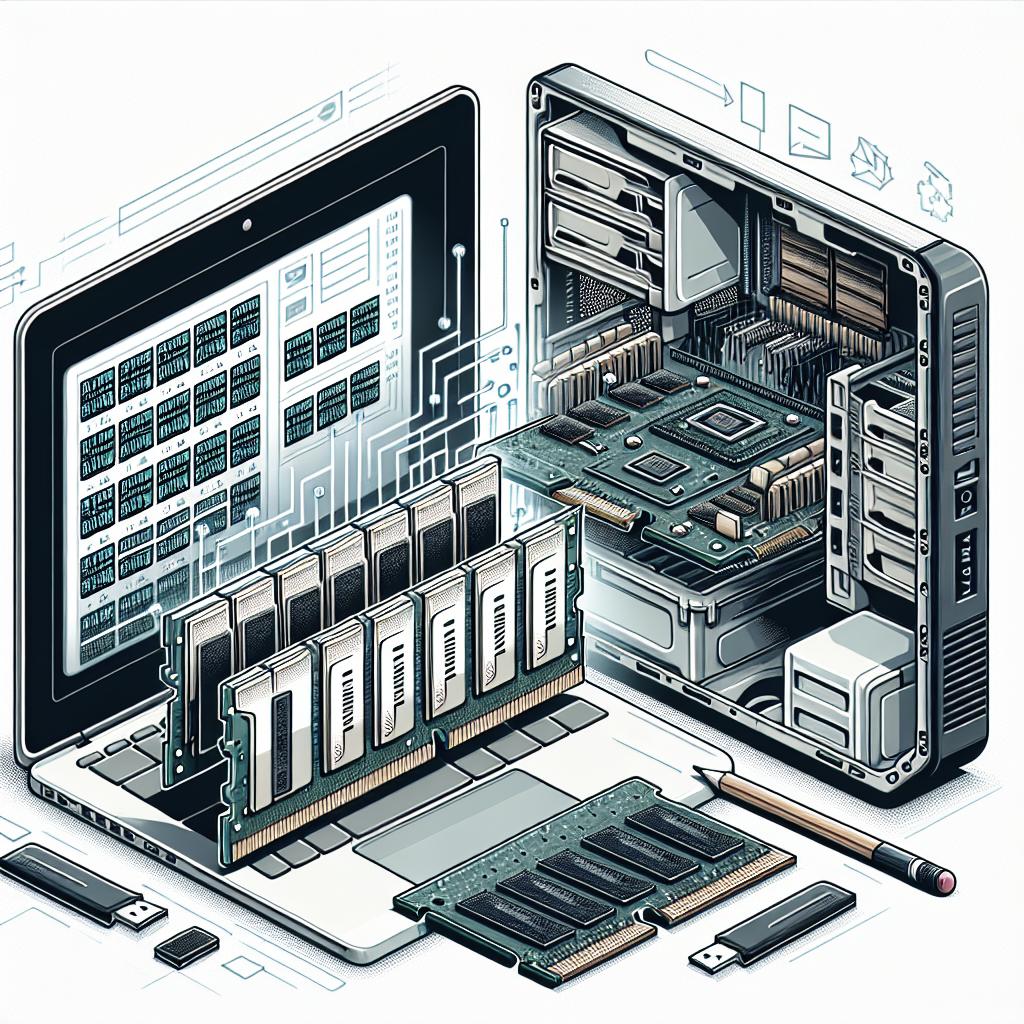
Upgrading your PC’s RAM is one of the most cost-effective ways to enhance its performance, enabling faster processing and smoother multitasking. This blog post will guide you through the process of selecting the right RAM for your needs, and offer step-by-step instructions on how to install it into your computer. Whether you’re a seasoned builder or a first-time upgrader, this article is designed to inform and assist you in getting the most out of your PC’s memory capabilities.
RAM Buying Considerations
Before purchasing RAM for your PC, it’s crucial to understand certain factors that can significantly influence your buying decision. One of the primary considerations is compatibility. Ensure that the RAM you’re considering is compatible with your motherboard. Check your motherboard’s documentation or specifications online to find out what type of RAM it supports, including DDR type and maximum supported memory.
Capacity is another important consideration. While 8GB of RAM may suffice for casual users, creators and gamers often benefit from 16GB or more. Additionally, memory speed, measured in MHz, impacts how quickly the RAM can process data. Although higher speeds can improve performance, most users may not notice significant differences in day-to-day tasks, so prioritizing compatibility and capacity is generally more important.
Corsair Vengeance RGB Pro 16GB (2x8GB) DDR4 3200MHz Desktop Memory
The Corsair Vengeance RGB Pro series is known for its reliability and performance, striking a balance between aesthetics and functionality. The kit comprises two 8GB sticks, providing a total of 16GB of RAM, which is ideal for gamers and content creators searching for enhanced performance and multitasking capabilities.
Apart from its performance, this RAM kit features dynamic RGB lighting, easily customizable through Corsair’s iCUE software. Tailor the lighting to suit your gaming rig, synchronizing it with other compatible peripherals for a visually stunning setup. Its XMP 2.0 support ensures easy installation and automatic overclocking.
Crucial Ballistix 3200MHz DDR4 Memory Kit 16GB (8GBx2)
Crucial Ballistix offers a powerful and dependable RAM option with a strong focus on stability and speed. With a dual-channel 16GB (8GBx2) configuration at 3200MHz, this kit caters to power users seeking improved responsiveness in games, large file handling, and efficient multitasking.
Not only is this memory module valued for its performance, but it also comes equipped with integrated heat spreaders to manage thermal performance effectively. Its compatibility with multiple platforms and straightforward installation process makes it a desirable choice for those considering a RAM upgrade.
How to Install RAM in Your PC
Installing RAM in your PC is a straightforward process that requires patience and attention to detail. First, ensure your PC is powered off and disconnected from any power sources. Open the case by removing the screws on the side panel, providing you with access to the motherboard.
Once inside, locate the RAM slots on the motherboard. These slots often have clips on either end that you need to open before installing the new RAM sticks. Align the notch on the RAM stick with the ridge inside the slot and gently press down until the clips snap back into place, securing the RAM. After ensuring all sticks are installed correctly, reassemble the case, reconnect all power sources, and power up your PC to check if the RAM is recognized.
Summary of Main Points
| Section | Main Points |
|---|---|
| Introduction | Importance of RAM upgrade; Overview of content |
| RAM Buying Considerations | Compatibility; Capacity; Speed |
| Corsair Vengeance RGB Pro | 16GB (2x8GB); RGB lighting; XMP 2.0 support |
| Crucial Ballistix Memory Kit | 16GB (8GBx2); Heat spreaders; User-friendly |
| How to Install RAM | Power off PC; Access motherboard; Install RAM sticks carefully |